Rich-text emphasis
Apply bold, italic and underline to the exact words that need attention. Keep the emphasis in the script so a change of speaker, key phrase or delivery cue is easy to recognize.
Read the guide ZaPromptONAIR
Teleprompter software for Mac & Windows
ZaPrompt is a teleprompter app for Mac and Windows. Prepare and format your scripts, control your scrolling, and deliver confidently across connected screens.
No card for the trial. No automatic trial charge.
FROM SCRIPT TO SPOTLIGHT
Shape your script with rich text, color and clear cues. Then bring it to life in a focused prompting view.
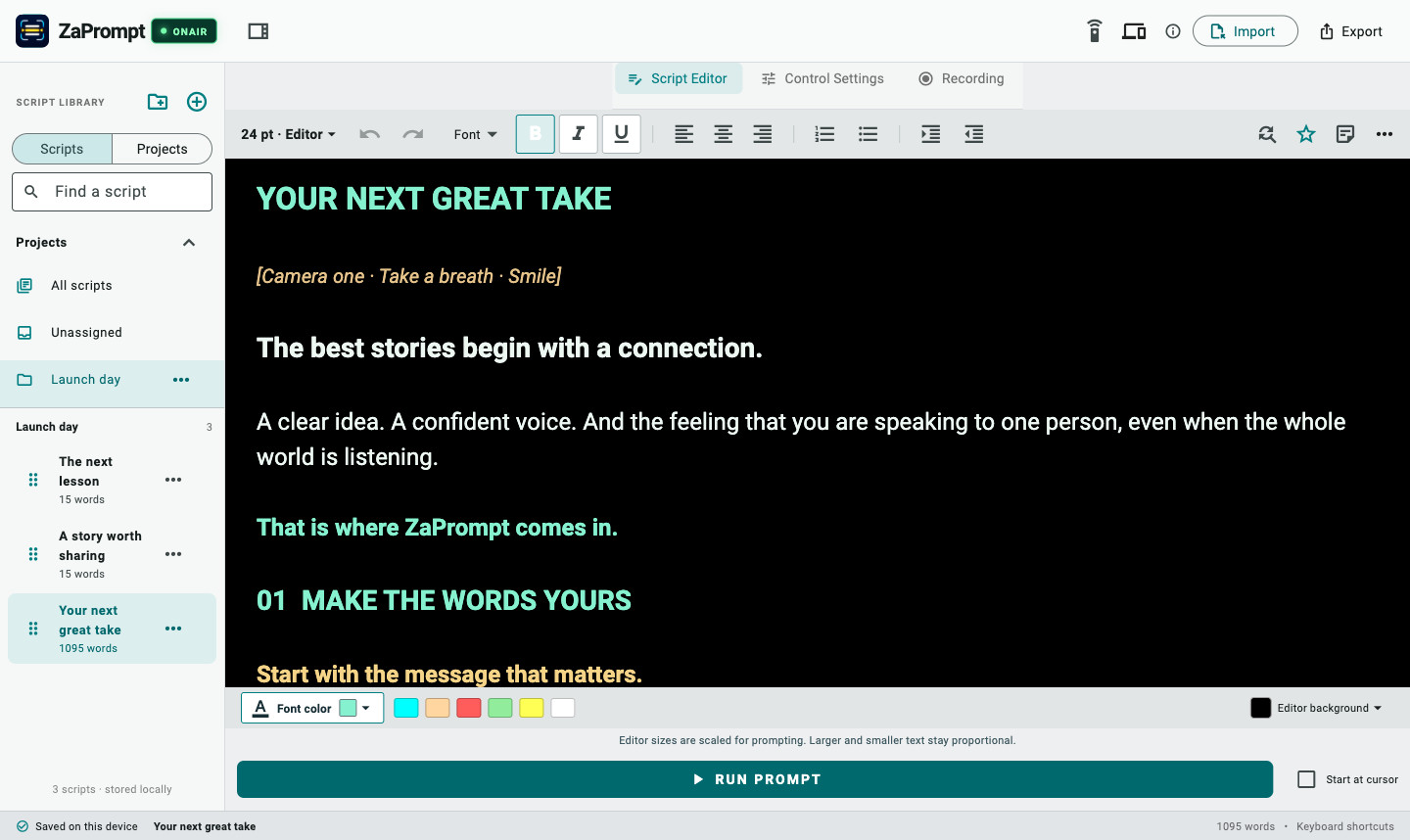
Build emphasis into the script with color, formatting and production cues. Keep private notes close by.
Set a comfortable pace, adjust the reading guides and keep control while your presenter stays focused.
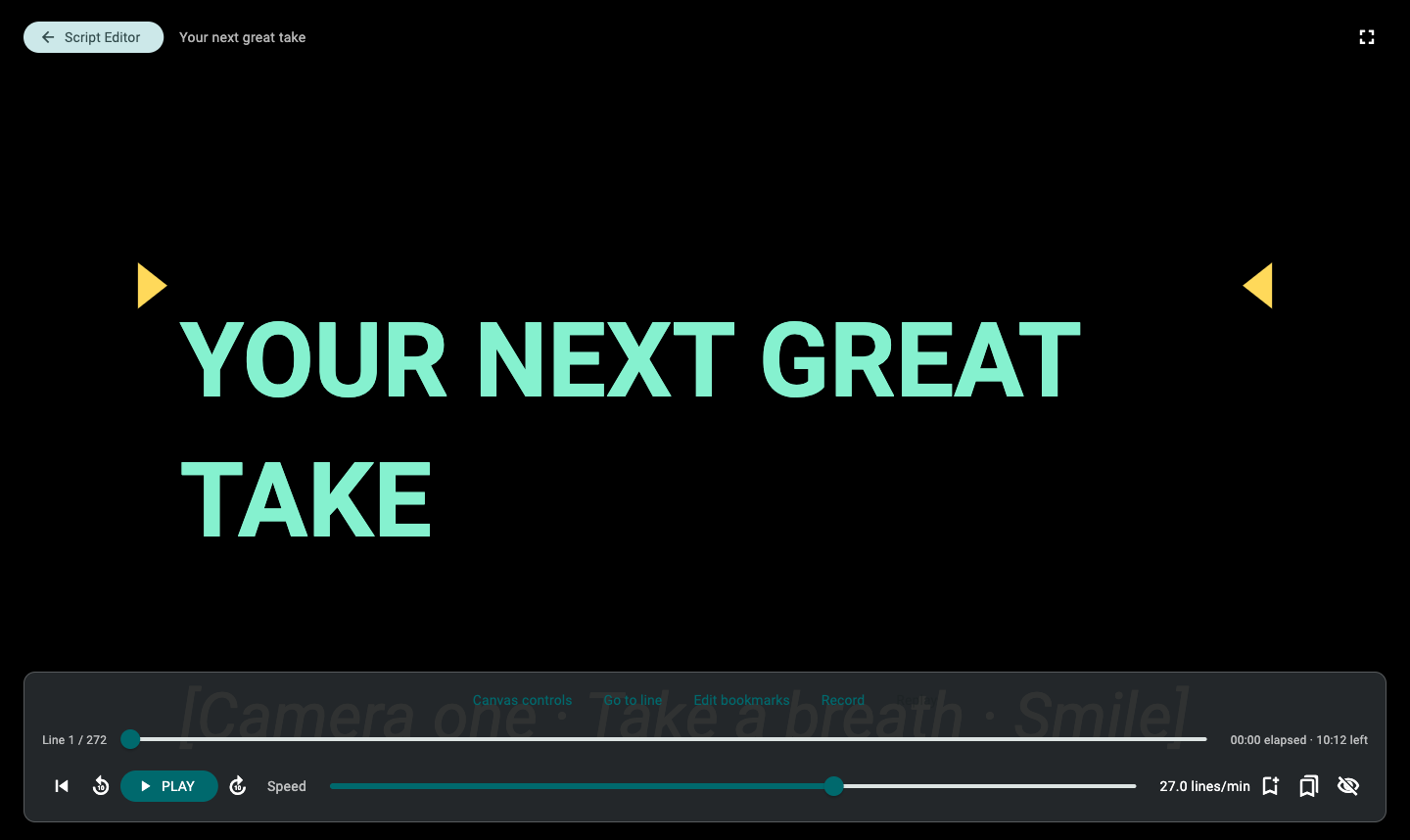
Captured from the running ZaPrompt OnAir app with a sample script; connected-device graphics are illustrations.
Download the rich-text sample scriptEVERY DETAIL, EXPLAINED
37 practical tools for writing, organizing, rehearsing and delivering. Choose a part of the workflow, then open its guide for setup details.
Give every line its own intention.
Apply bold, italic and underline to the exact words that need attention. Keep the emphasis in the script so a change of speaker, key phrase or delivery cue is easy to recognize.
Read the guideChoose a font and set editor text from 6 to 144 points. Larger and smaller passages stay proportional when the script is scaled for prompting; the body-lines setting controls the overall reading size.
Read the guideChoose a palette color or enter a hex value for selected text. Color-code speakers, pauses or important phrases, and choose an editor background that makes the contrast easy to check.
Read the guideBuild numbered or bulleted sections, adjust indentation and align paragraphs. Give a multi-part script a clear structure while retaining supported formatting in the prompting view.
Read the guideLocate a word or phrase, move through matches and replace one match or all matches. Update a product name or repeated pronunciation cue without manually combing through the script.
Read the guideKeep camera directions, reminders and other operator notes beside the editor. Notes do not appear on talent screens; portable .zprompt exports include them, so check before sharing a file.
Read the guideKeep each production ready to find.
Create and rename projects, then move scripts into the right production. Switch between a project, all scripts and unassigned work; deleting a project preserves its scripts.
Read the guideChoose whether to search scripts or project names. Find the right piece of work from the library instead of opening each production to look for it.
Read the guideStar a script to make it stand out in your library. Keep frequently used openings, recurring segments and the scripts you return to easy to recognize.
Read the guideMake a separate copy of an existing script. Prepare a new episode or an alternate take while keeping the original available for comparison.
Read the guideDrag scripts into the order you want or move them to a project. Arrange the library around your running order instead of relying only on a file name.
Read the guideScript edits are saved automatically in the app’s local database, with a visible error and retry if a write fails. Keep portable exports as backups; local saving is not cloud synchronization.
Read the guideBuild a reading view that feels right.
Adjust the prompting speed before or during a run, including backward scrolling. Slow down for a difficult line, pause for a beat and resume at a pace that matches the speaker.
Read the guideSet the body text density from 4 to 20 lines per screen and tune scroll smoothness. Match the reading size and movement to the distance between the presenter and the display.
Read the guideAdjust the left and right margins separately. Shape a comfortable reading column and avoid asking the presenter to scan from one edge of a wide screen to the other.
Read the guideShow or hide the left and right reading brackets and arrows. Drag the guide position in the prompting view to put the reading target where your presenter needs it.
Read the guideChoose no countdown or a 5, 10, 15 or 20-second lead-in, and decide whether a run starts paused. Give the presenter time to settle before the words begin moving.
Read the guideSwitch from continuous scrolling to paging mode. Up/Down arrows or the mouse wheel move one screen at a time; paging mode skips the countdown.
Read the guideStay in control from first word to final cue.
Enable looping to return to the beginning when a script reaches the end. Useful for repeated practice or a continuously presented message; the opening countdown is not repeated on each loop.
Read the guideSeek with the progress slider, jump backward or forward, or go directly to a line. Start from the editor caret when needed so you can pick up a section without replaying the whole script.
Read the guideAdd bookmarks during prompting, name or rename them and jump between cues. Saved positions are tied to the current script and layout; changed content may require fresh bookmarks.
Read the guideSee the current line, total lines, elapsed time and estimated time remaining. Timing follows the prompting run and current pace, giving the operator a useful reference during delivery.
Read the guideEnter fullscreen and hide or reveal the operator controls. Keep the reading view focused, then bring transport controls back when an adjustment is needed.
Read the guideRecord scrolling movement, pauses and speed changes, then replay the latest saved rehearsal. It records prompting timing rather than camera video or microphone audio; script or layout changes require a new rehearsal.
Read the guideGive every screen the right job.
Keep transport controls on the computer while a compatible external display shows the clean script. The presenter can concentrate on reading while the operator manages the run.
Read the guideSet horizontal mirroring and vertical flip separately for the operator and talent views. Match the text to compatible teleprompter glass without forcing the operator to read the same orientation.
Read the guideChoose the orientation of individual talent displays. Adapt a portrait or landscape setup to the screen you are using and verify the result on the actual device before the take.
Read the guideEnable or disable individual talent outputs and choose a layout reference. Other connected screens preserve that reference’s line layout; disabled outputs remain blank rather than showing operator controls.
Read the guideOpen the current session invitation in a compatible phone browser on the same reachable local network. Manage connected screens and connection tuning from the operator; fullscreen and wake behavior depend on the device.
Read the guideIn compatible native talent mode, discover a nearby operator on the local network and request pairing. The operator allows or declines that request; a browser invitation uses a separate connection flow.
Read the guideWork with your tools, your language and your scripts.
Map key combinations for playback, speed, smoothness, bookmarks and text size. Swap the speed and smoothness arrow keys if that suits your workflow, or restore the default assignments.
Read the guideAssign supported keyboard-emulating or gamepad buttons to prompting actions. Save the mappings across scripts and test the actual device; proprietary remotes are not automatically compatible.
Read the guideChoose mouse-wheel speed control or use supported swipe input to adjust the run. Configure the behavior for your operating style; in paging mode, the wheel advances by a screen instead.
Read the guideSwitch the app interface between English, Spanish, French, German, Brazilian Portuguese and Simplified Chinese. The website and guides use the same six-language selection; your script text remains your own.
Read the guideBring in plain text, RTF, legacy .zap and portable .zprompt files. Review formatting and any imported legacy settings before prompting; DOCX and PDF import are not currently included.
Read the guideExport a .zprompt document with supported formatting, settings and private notes, or a plain-text copy without formatting or notes. Move a prepared script between installations and keep an independent backup.
Read the guideScan the remote QR code on a compatible phone or tablet on the same local network. See the live script, tap to play or pause, swipe to change speed or position, and pinch to adjust text size.
Read the guideA SMALLER SETUP. A BIGGER POSSIBILITY.
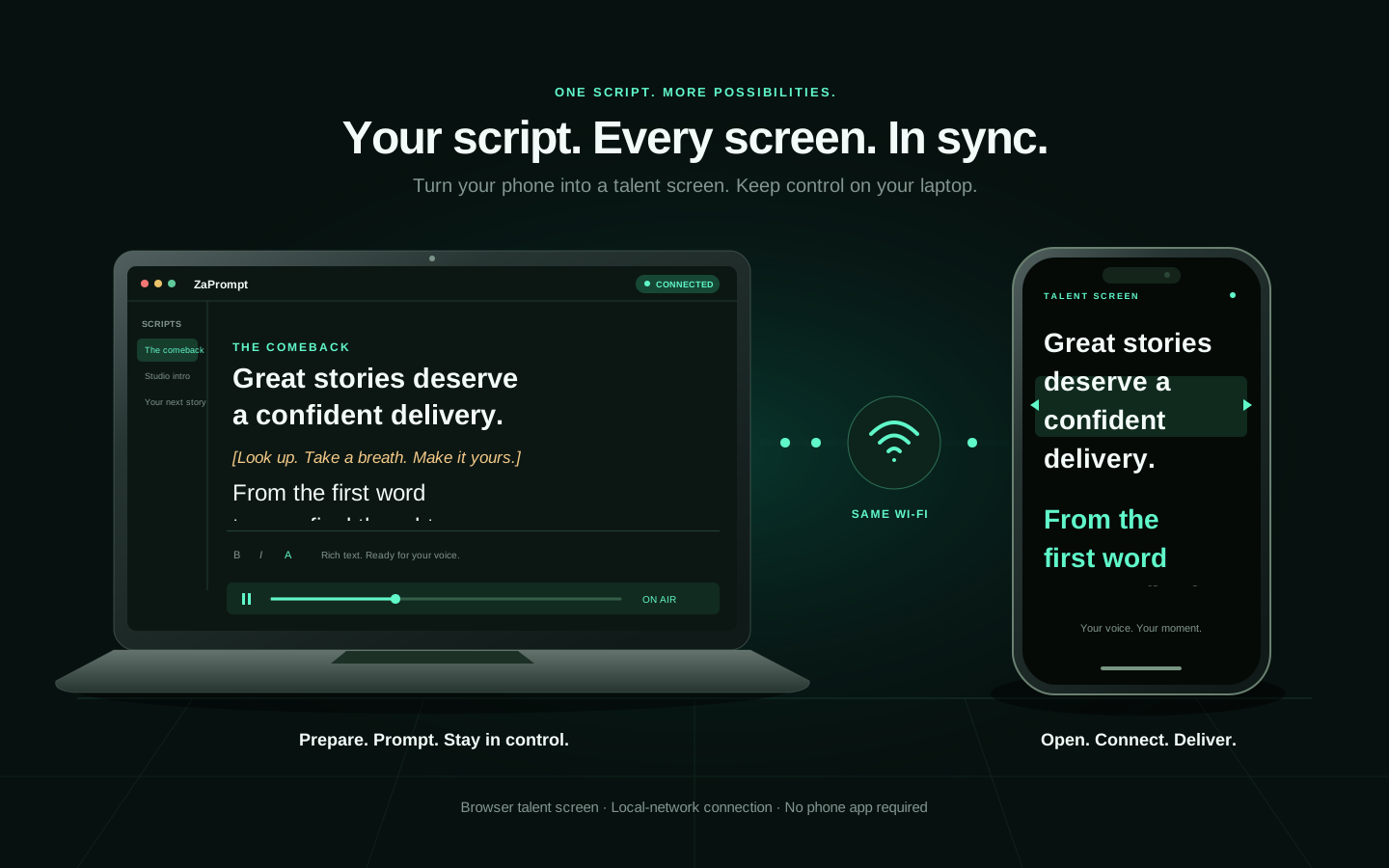
Turn a compatible phone browser into a talent screen over the same local network. Keep your operator controls on the computer and a clean script in front of the presenter.
A browser, not another install.Open the current invitation on the talent device.
One local production.Computer and phone need the same reachable local network.
Set up with confidence.Check fullscreen, orientation and connection on your own device before a take.
PICTURE YOUR SETUP
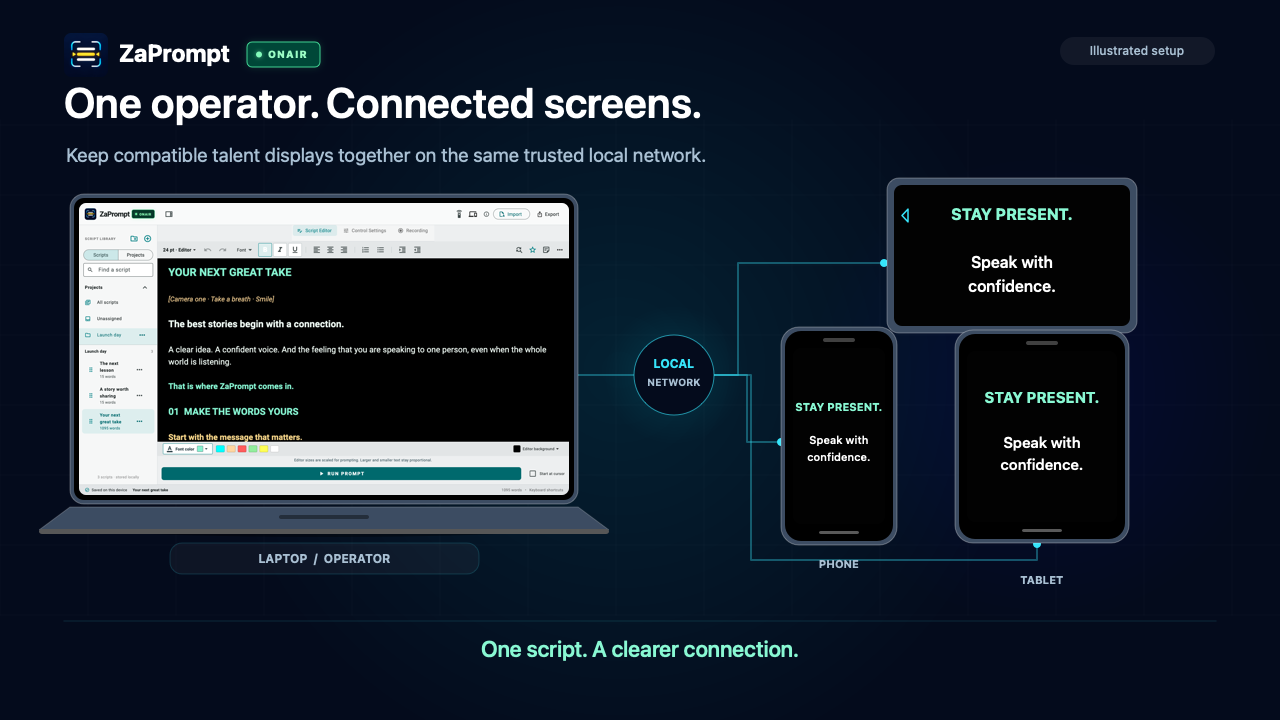
Three ways to bring the script, the presenter and the controls into the right places.
Illustrated setup
Use the current session invitation to open a clean talent view in a compatible phone, tablet or computer browser. The operator keeps control on the laptop while the presenter reads from the screen that fits the setup.
Open the setup guide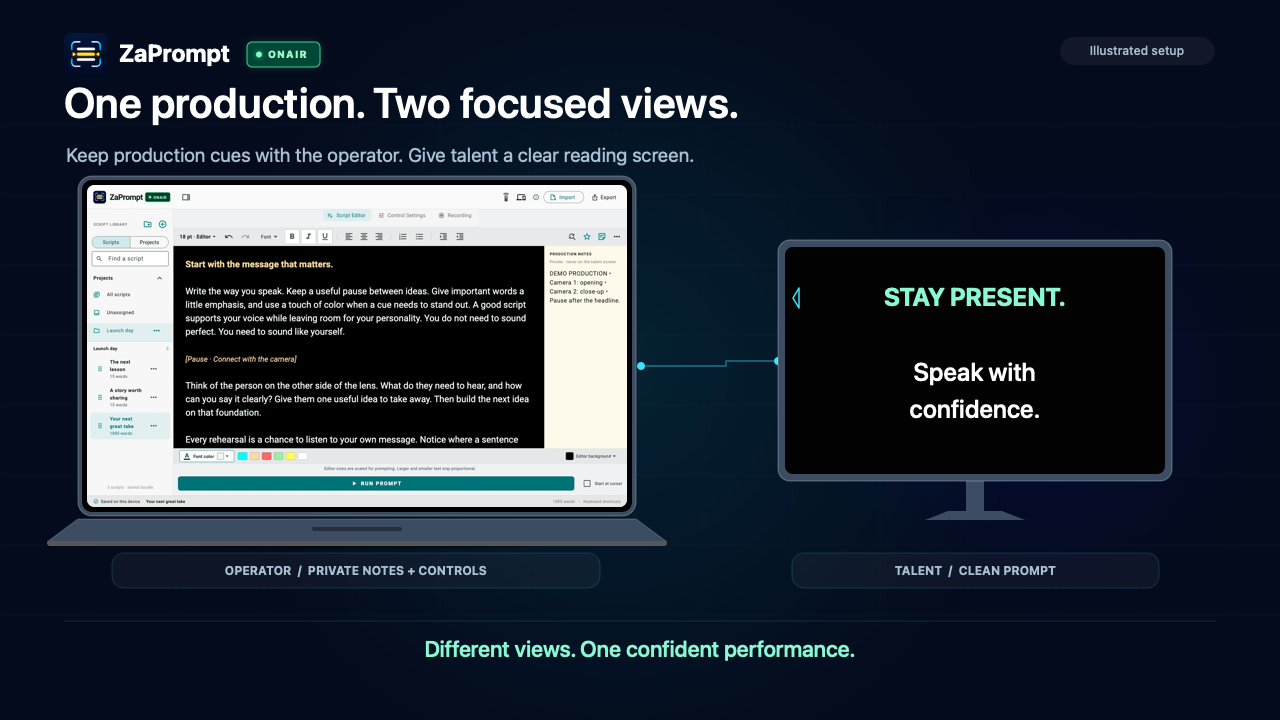
Illustrated setup
Keep private production notes and playback controls beside your script on the computer. Talent screens show the reading view, with a shared layout reference preserving the same line breaks across the connected views.
Open the setup guide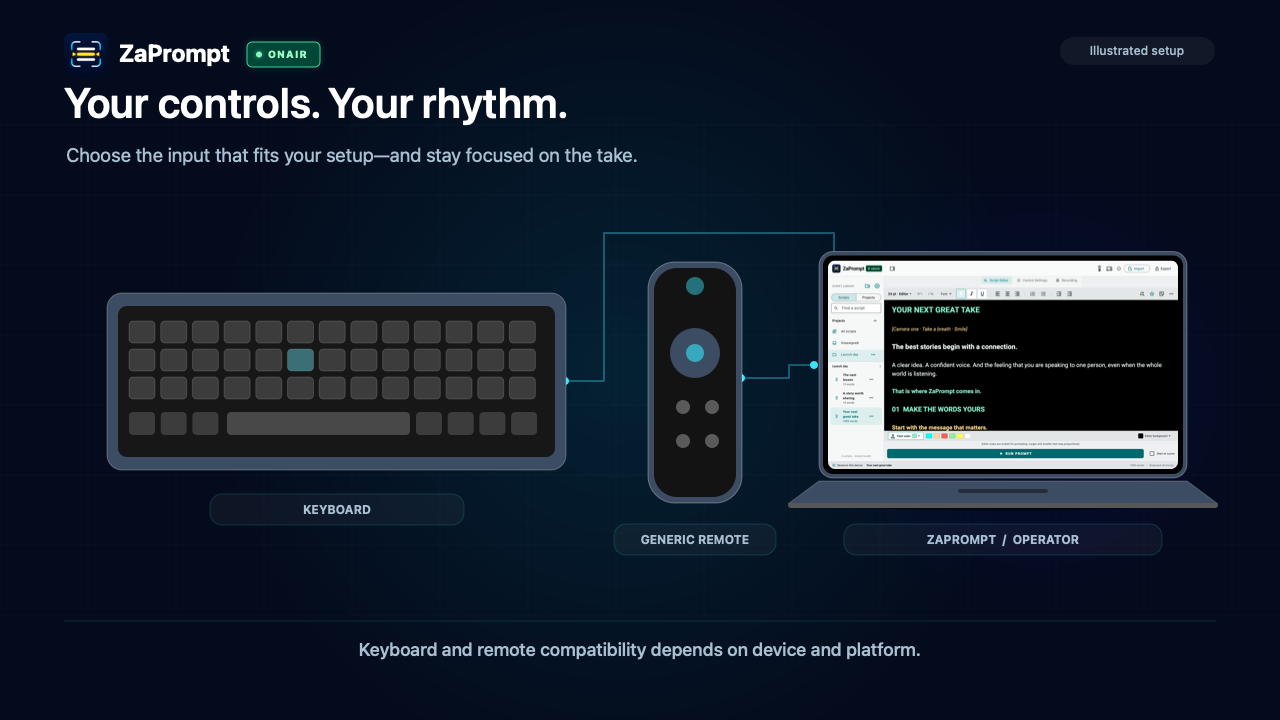
Illustrated setup
Customize keyboard shortcuts or map supported keyboard-emulating remote and gamepad inputs to prompting actions. Choose how you pause, change pace and navigate, then check the actual device; compatibility depends on the device and platform.
Open the setup guideThese are setup illustrations, not hardware footage. Browser screens need the same reachable, trusted local network. Test your display and controller on the device and platform you plan to use.
CLOSER TO THE LENS
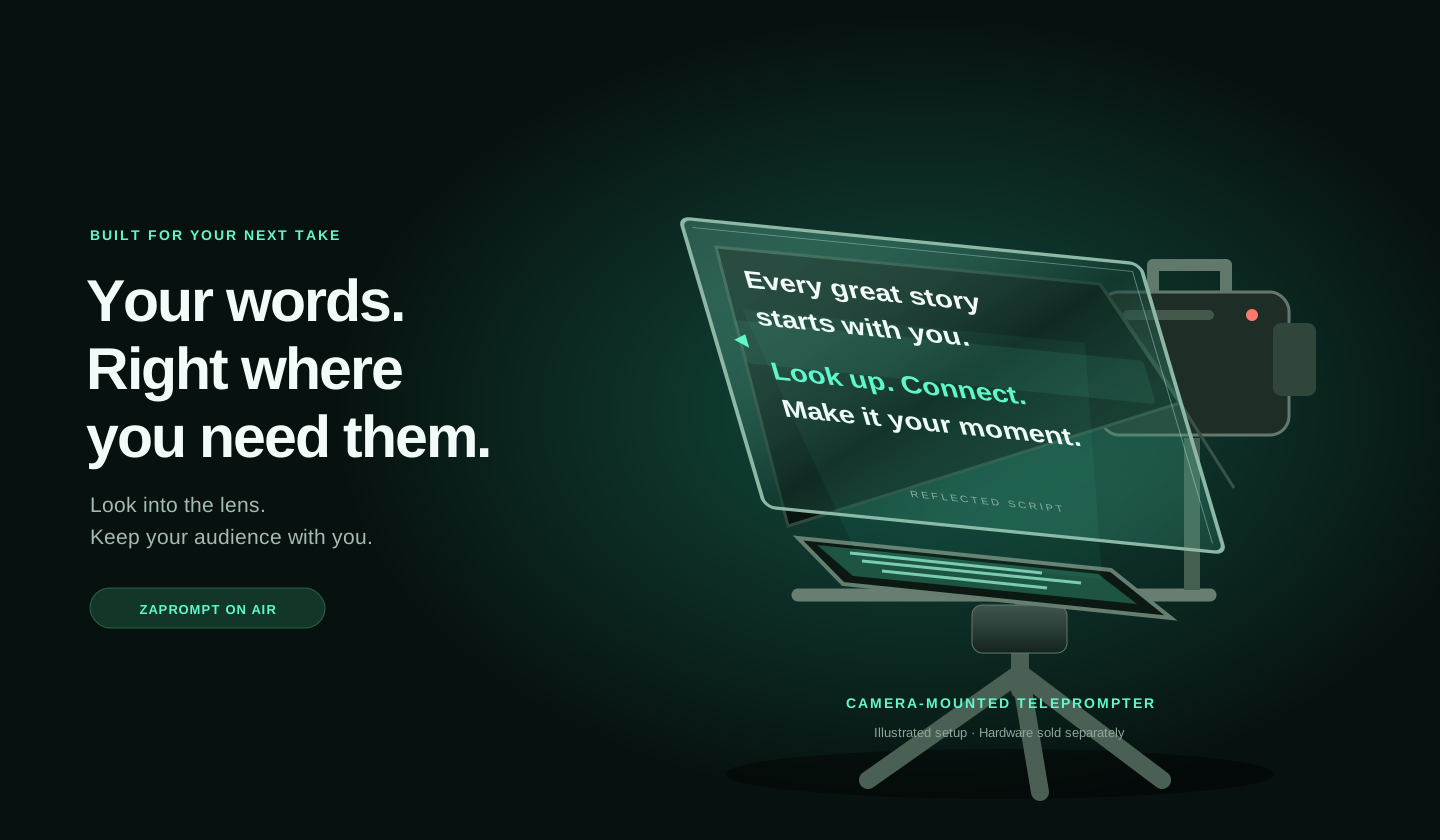
Bring your script into view with a compatible camera-mounted teleprompter. Mirroring and display controls help you match the prompt to your equipment.
Explore talent display setupTeleprompter hardware is sold separately. Check your display connection and the equipment you plan to use.
MEET YOUR NEXT CHAPTER
Follow one production from the first draft to the final read: projects, rich text, prompting, talent screens, controls and rehearsal. Chaptered, narrated and filmed in your language.
Open the full tour with chapters and transcriptReal app footage filmed in a separate demonstration build of ZaPrompt OnAir in each interface language. Title cards and slides are designed graphics; narration is a Google text-to-speech voice.
MAKE ROOM FOR YOUR MESSAGE
From a quiet recording space to a busy production, build a prompting workflow around the way you work.
Keep a lesson, product story or next episode on track while leaving room for your own personality.
Turn a prepared message into a practiced delivery, with visible cues and a pace that feels comfortable.
Keep projects organized and give the operator and presenter the views they each need.
BUILD YOUR SETUP
ZaPrompt OnAir is the same app on Mac and Windows, with the same features on both. Compatible phone browsers can join a local talent session.
Check setup guides and current availabilityMobile apps are in device testing. Learn the touch controls and camera workflow.
YOUR NEXT GREAT TAKE
Start with a free trial. Choose a subscription when you are ready. No payment method is required for the trial, and there is no automatic charge.
Loading current plans…
A FEW THINGS TO KNOW
More questions? Browse the guides or ask the support community.
Visit supportDownload now—no account or email verification needed. Install ZaPrompt, sign in with Google or a verified email, then choose Start free trial. Downloading and signing in do not start your trial.
No. The trial requires no payment card and does not automatically become a paid subscription. You choose a paid plan separately when you are ready.
A compatible phone browser can open the operator’s current invitation on the same reachable local network. This is a local talent display, not an Internet remote-production service. Browser fullscreen and wake behavior depend on your device.
You can prompt on the computer or use a compatible talent display. A camera-mounted teleprompter is optional hardware. Mirroring and rotation help with compatible setups; test your actual equipment before production.
Import plain text, RTF, legacy .zap or portable .zprompt documents. Check imported formatting before a take. Portable exports retain supported formatting and settings; plain text is text only. DOCX and PDF import are not currently included.
Rehearsal recording saves prompting movement and timing so you can replay a practiced run. It does not record camera video or microphone audio.
The app and website interfaces support English, Spanish, French, German, Brazilian Portuguese and Simplified Chinese. Script text is your own; check your chosen fonts and text layout in the prompting view.
Teleprompter software for Mac & Windows
Bring your words. Find your rhythm. Put the focus back on the story.